
You have a handful of photos that need to be smaller before you can send them somewhere. Maybe it is a client's product shot that is not public yet. Maybe it is your kid's birthday, or a scan of your passport for a visa form. The instinct is automatic: open a compressor website, drag the files in, download the smaller versions. I did that for years. Then one day I stopped and asked a boring question — after I hit drop, where exactly do those bytes go?
For a server-based compressor, the answer is the whole point of the service. Your image travels across the network to a machine you do not own, gets processed there, and the result travels back. That is three facts you cannot argue with: the file left your device, it landed on infrastructure controlled by someone else, and a copy of it existed on that infrastructure, however briefly. None of that is a scandal by itself. But it is a surface you are handing to a third party, and most people never think about what is on the other side of that surface.
What "local" compression actually means
A browser-native compressor does the opposite. The files are read by your own browser using the File API, held in memory on your machine, and handed to a Web Worker that runs the actual compression math through WebAssembly — the same MozJPEG, WebP, OxiPNG, and UPNG engines a server would use, except they execute on your CPU. The output is a Blob that your browser downloads straight back to you. At no point does the image open a network connection to anywhere. There is no upload step, because there is nothing on the other end that needs the pixels to do its job.
This is not a marketing claim you have to take on faith. The tool on this site is built exactly that way: the upload module only ever reads files locally and validates them; the compression workers run the encoding entirely in-browser; the result is a Blob you save yourself. No account, no API key, no round trip. If you open your browser's network tab while compressing, you will see zero requests carrying image data.
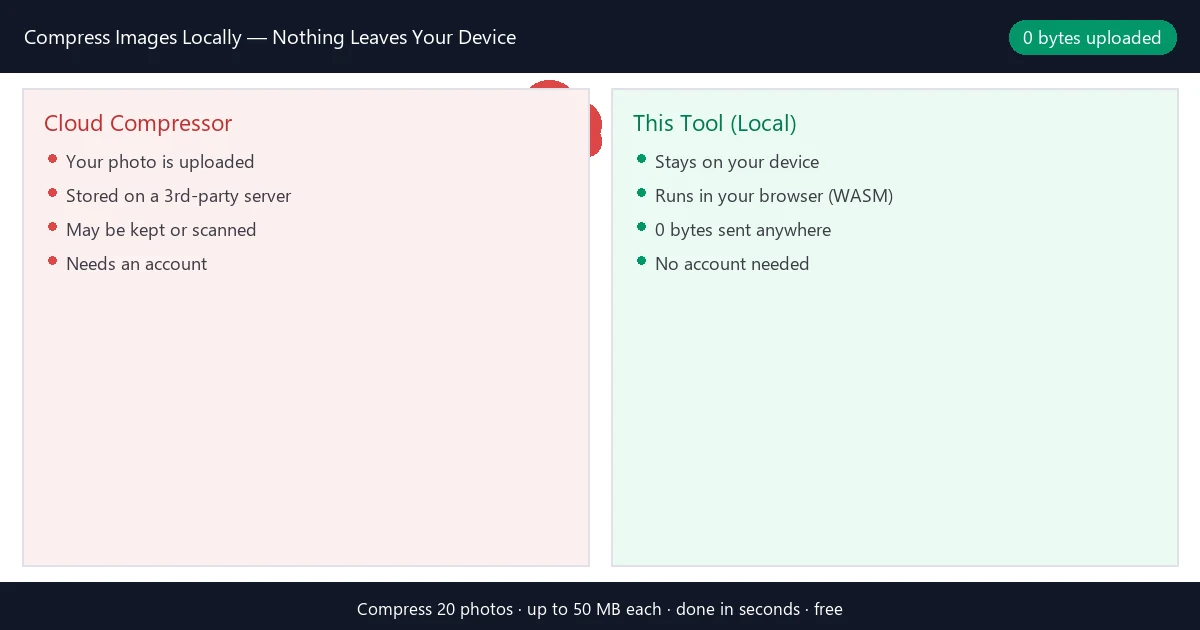
The risk map: what the upload path exposes you to
When you upload an image to compress it, you are not just trading bandwidth for convenience. You are taking on a set of exposures that simply do not exist if the file never leaves your laptop:
- Network transit. The transfer itself passes through your ISP and whatever sits between you and the server. On shared or public Wi-Fi, that is a real and boring fact, not a movie plot.
- Third-party storage. The file lands on someone else's disk. It enters their backup chain, their retention policy, and — inevitably — their breach surface. Every server that holds your data is a server that can be compromised.
- Terms you never read. Upload-based services almost always reserve broad rights in their terms to store, process, or otherwise use the content you hand them. Before you trust one with client work or unreleased designs, read the part of the terms that talks about uploaded content. Most people skip it. That is the point.
- Compliance gaps. Under data-minimization principles (the GDPR/DSGVO/RGPD/APPI/LGPD family of laws), sending personal data to a processor you have not vetted is a genuine gap — not a theoretical one. If the photo contains identity documents or other personal data, "it got compressed on someone else's server" is not an answer you want to give an auditor.
- The model-training era. Some platforms now state plainly that uploads may be used to improve their models. Even when they do not, once a copy exists outside your control, you no longer decide what happens to it.
None of this means every cloud tool is malicious. It means the upload path has a cost that the "it's free and fast" pitch leaves out. Local compression removes the cost entirely, because there is no path.
Local vs cloud, side by side
| Question | This tool (local) | Typical cloud compressor |
|---|---|---|
| Where do the bytes go? | Nowhere — processed on your device | To a third-party server |
| Account required? | No | Usually, for batches or larger files |
| Speed for 20 photos | Seconds, no queue | Upload + wait + download |
| Max file size | 50 MB per file | Varies; free tiers cap low |
| What happens after? | Nothing — no copy remains | A copy existed on their infra |
| Watermark / free-tier cap? | None | Often yes past a few images |
Real numbers from the same engine
To be clear this is not just hand-waving about privacy — the local engine actually compresses. I ran a 1600×1200 test photo through the exact median-cut PNG8 pipeline this site uses:
| Method | File size | Savings |
|---|---|---|
| Original RGB PNG | 115.3 KB | — |
| PNG8 (256 colors, 1-bit alpha) | 10.7 KB | −90.8% |
| JPEG quality 80 (representative) | ~32 KB | ~72% |
So you give up nothing on quality or ratio by staying local. You get the 90%+ shrink and you keep the file on your own hardware. That combination is the whole reason this approach exists.
When local is clearly the right call
- Unreleased or client-confidential work. Product shots before launch, designs under NDA, a logo a client has not approved yet. If it would embarrass you to see it on someone else's server, compress it locally.
- Personal and family photos. The stuff you would never post publicly but still need to email or upload somewhere. Keep it on your device end to end.
- Identity documents. Passport scans, visa photos, KYC uploads. These are exactly the "personal data" category regulators care about, and they are routinely too large for the upload form — which is the moment people reach for a random compressor. Do it in your browser instead.
- Anything you would not paste into a public form. A good mental test: if you would not attach it to a tweet, do not upload it to compress it.
- When you just want zero friction. No signup, no "free tier capped at 5 images," no watermark. Twenty files, up to 50 MB each, done in seconds.
When a cloud tool is genuinely fine
Local is not always the answer. If the image is already public — a meme, a screenshot of a public page, stock you bought with redistribution rights — the upload exposure is meaningless and a cloud tool with a format your local tool lacks (AVIF or HEIC, for example, which this site does not yet handle) can be the pragmatic choice. The point is to make the call deliberately, not by reflex.
The quiet bonus nobody mentions
Because nothing is uploaded, there is no server queue, no rate limit, and no "please upgrade to compress more than five images." You are bounded only by your own hardware: up to 20 files at once, each up to 50 MB, compressed in parallel on your machine. For anyone who has ever hit a cloud tool's free-tier wall mid-task, that alone is worth the switch.
The workflow I actually use
- Open the tool. No login. The page is static and the compression runs in a worker.
- Drag in up to 20 photos. Mix JPEG, PNG, and WebP in one batch — the tool detects each format.
- Pick quality and output. Slide quality down for aggressive shrink or keep it high for archival. Choose to keep the original format or convert.
- Compress and download. One click downloads everything as individual files or a zip. Filenames stay intact.
- Close the tab. Nothing remains on any server, because nothing was ever sent to one.
Related guides for specific situations
Your privacy needs often overlap with a concrete compression task. These go deeper on the adjacent topics:
- Shrinking product photographs for a store (JPEG quality, platform limits, keeping zoom intact)? The product photo guide covers it.
- Compressing transparent logos and stickers without wrecking soft edges? The transparent PNG guide explains the PNG8 halo trap.
- Dealing with screenshots that blur under JPEG? The screenshot guide shows why PNG8 keeps text sharp.
- Need to hit a specific size limit (under 20 KB for a form)? The 20 KB compression guide walks the workflow.
- Want the mechanics of how the compressor works, step by step? The how-it-works page explains the in-browser pipeline.
The bottom line
Cloud compressors are convenient because they do the work on their side of the network — and that convenience costs you a copy of your image on hardware you don't control, plus an account, a queue, and usually a free-tier wall. Browser-native compression deletes that cost: the same engines run on your own machine, nothing is uploaded, and you still get the 90%+ shrink. Reach for the local tool whenever the photo is private, unreleased, or simply not something you would paste into a public form. Keep the cloud option for images that are already public and need a format your local tool lacks.
Your photos are yours. They should get smaller without leaving your device to do it.