
You grab a screenshot — a bug report, a weird error message, a receipt, a snippet of code you want to show a friend — and the moment you paste it somewhere it looks… soft. Fuzzy. Like someone smeared a tiny bit of Vaseline on the letters. You send it anyway. "Can you send a clearer one?" they say.
So you do what the internet tells you: you open it, hit "Save as," pick JPG, because JPG makes files smaller, right? And now the text is worse, and somehow the file is barely any smaller. Welcome to the most misunderstood thing about screenshots.
Here's the part nobody explains: a screenshot is not a photo. A photo is a million tiny gradients — sky, skin, shadows — and JPEG was built for exactly that. A screenshot is text and flat color. Sharp edges everywhere. JPEG hates sharp edges. When it meets a straight line of text, it has to approximate it, and the approximation is what you see as blur and those weird shimmery halos around letters. PNG, on the other hand, stores those edges exactly. That's why your screenshot looked perfect as a PNG and mushy as a JPG.
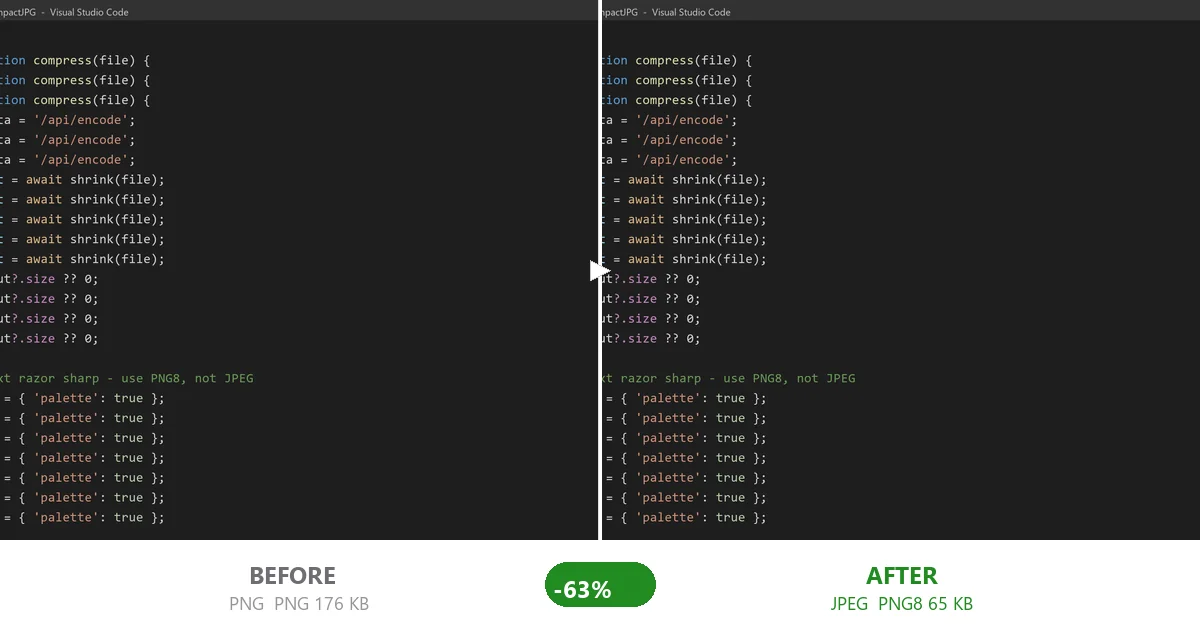
I got annoyed enough to actually measure this instead of guessing. I took three real screenshots — a code editor, a settings dialog, and a terminal window — and ran each one through two paths: the right one (palette / PNG8 compression, the same engine our image compressor uses for PNG files) and the lazy one (export as JPEG at quality 70, the default most apps use).
| Screenshot | Original PNG | PNG8 (crisp) | JPEG q70 (blurry) |
|---|---|---|---|
| Code editor | 175 KB | 65 KB | 122 KB |
| Settings dialog | 48 KB | 21 KB | 57 KB |
| Terminal window | 69 KB | 27 KB | 74 KB |
Read that JPEG column again. For all three, the "smaller" JPEG was not only blurry — it was bigger than the proper PNG8 result. On the code editor, JPEG came in at 122 KB, nearly double the 65 KB PNG8 version, and the text in it looks like it's been through a wash cycle. The PNG8 version is smaller and every character is pixel-identical to the original.
Stack those up and it adds up fast. Twenty screenshots like the ones above run about 1.9 MB raw and shrink to roughly 800 KB as PNG8 — still crisp, now small enough to drop into any ticket or doc without a second thought.
Why "save as JPG" is the wrong reflex
JPEG compression works by throwing away detail your eye supposedly won't miss in a photo. On a sunset, that's fine — you'd never notice. On a line of 11-point text, it's a disaster, because text is exactly the high-detail, high-contrast stuff JPEG is worst at. The encoder rounds those edges, you get blur, and because screenshots are mostly flat color (which compresses trivially well as PNG), the JPEG file often ends up larger than the PNG you started with. You lose quality and gain nothing.
The one exception: if your "screenshot" is really a capture of a video or a 3D scene — something with smooth gradients in it — a JPEG or WebP will do fine on the gradient parts. But the text labels on top of it stay sharpest as PNG. So the safe default is always: keep it as a PNG, just compress the PNG properly.
What actually works: PNG8 (palette) compression
PNG8 takes the colors in your image and packs them into a small palette — 256 or fewer — then re-stores the image using only those. For a screenshot, which usually uses a handful of colors anyway, this barely touches the visuals. The text color is one entry in the palette; it comes out exact. The file shrinks because you're no longer storing millions of redundant pixels at full depth.
This is exactly what our compressor does when you drop in a PNG: it re-encodes as an optimized PNG8, locally, in your browser. Nothing leaves your machine.
The workflow I actually use
It takes longer to read this than to do it:
- Collect the screenshots you need to send or post. Ten of them is normal for a bug report or a how-to doc.
- Drop them into the compressor — batch works, no need to do one at a time.
- Let it re-encode as PNG8. You don't pick a quality slider; palette compression keeps things sharp by design.
- Download and use them. They're smaller, they're crisp, and they paste cleanly into Slack, a ticket, a doc, or an upload form.
If you're fighting a strict upload limit — a support portal that caps a single file at 20 KB, say — palette compression alone might not get you there, because text screenshots have a floor. For those, you also drop the resolution a notch (a smaller screenshot) and sometimes you do have to accept light JPEG softening. Our 20 KB compression guide covers that exact case without the form rejecting you.
When you actually do want JPEG
None of this means JPEG is bad. It's the right call for actual photographs — phone shots, camera RAW exports, product images. If you're emailing a batch of photos, that's a different problem with a different fix (re-compress as JPEG at quality 75, not PNG). I wrote a separate walkthrough on getting oversized photo emails under the limit if that's your headache.
The point is just: match the format to the image. Photo → JPEG. Screenshot → PNG8. Mix them up and you either bloat the file or blur the text. Usually both.
The easy version
You shouldn't need to think about palettes and encoders just to send a readable screenshot. The reason I built this tool is that every "compress" app I tried either forced everything to JPEG (blurry text) or uploaded my files to a server (no thanks). The approach that just works: open the page, drop in the screenshots, download crisp smaller PNGs, done — all in the browser, nothing uploaded.
Next time someone replies "can you send a clearer one," you'll know the fix was never "save as JPG." It was "don't let it become a JPG in the first place."