
You took a handful of photos on your phone — a birthday, a hike, a house you're thinking about renting — and you want to send them to a friend or a landlord. You tap "share," pick the email app, drop in twelve pictures, and hit send. Then you see it: "Attachment size exceeds the 25 MB limit."
I've done this more times than I'd like to admit. And like most people, my first instinct was to zip the folder. So I did — and the email still bounced. Because zipping photos barely does anything, and I'm going to show you exactly why with real numbers.
Then I tried the thing that actually works: re-compressing the JPEGs with a proper encoder (the same MozJPEG engine our image compressor uses). The same twelve photos went from 42 MB down to 2.8 MB. One email. No bounce.
First, the email limits everyone hits
Every major provider puts a hard ceiling on attachment size, and they're all in the same neighborhood:
- Gmail: 25 MB per email (the recipient gets a Google Drive link if you go over).
- Outlook / Hotmail: 20 MB.
- Apple Mail (iCloud): about 20 MB before it switches to Mail Drop links.
- Yahoo: 25 MB.
Twenty-five megabytes sounds like a lot until you remember what a phone photo actually weighs. A single shot from a modern phone is 3–5 MB. Twelve of them? You're at 40–50 MB before you've blinked. One photo is fine. A few photos is fine. A real batch blows past the limit instantly.
Why zipping doesn't help (I tested it)
JPEG files are already compressed. They're not like a Word document or a folder of text files where zipping finds tons of repeated patterns to crunch down. A JPEG is already a tightly packed blob of frequency data. When you zip it, there's almost nothing left to squeeze.
I took the same twelve 8-megapixel phone photos and zipped them:
| What | Total size | Verdict |
|---|---|---|
| 12 photos, raw | 42.3 MB | Blocked by Gmail |
| 12 photos, zipped | 40.8 MB | Still blocked |
| Saved by zipping | 1.5 MB (3.5%) | Not even close |
Zipping saved 1.5 MB out of 42. That's a rounding error. The folder is still 40.8 MB — still 15 MB over Gmail's limit, still bouncing. So much for that idea.
What actually works: re-compressing the JPEGs
Here's the part nobody tells you. Your phone saves photos at quality settings optimized for printing and cropping, not for sending. A vacation photo doesn't need to survive a 300 dpi print. It needs to look good on a screen. Dropping the quality slightly — but smartly — shrinks the file dramatically with no visible difference on a phone or laptop.
I ran all twelve photos through real MozJPEG compression at two settings:
| Photo | Original | MozJPEG q75 | MozJPEG q60 |
|---|---|---|---|
| photo 01 | 3,612 KB | 238 KB | 90 KB |
| photo 02 | 3,616 KB | 238 KB | 89 KB |
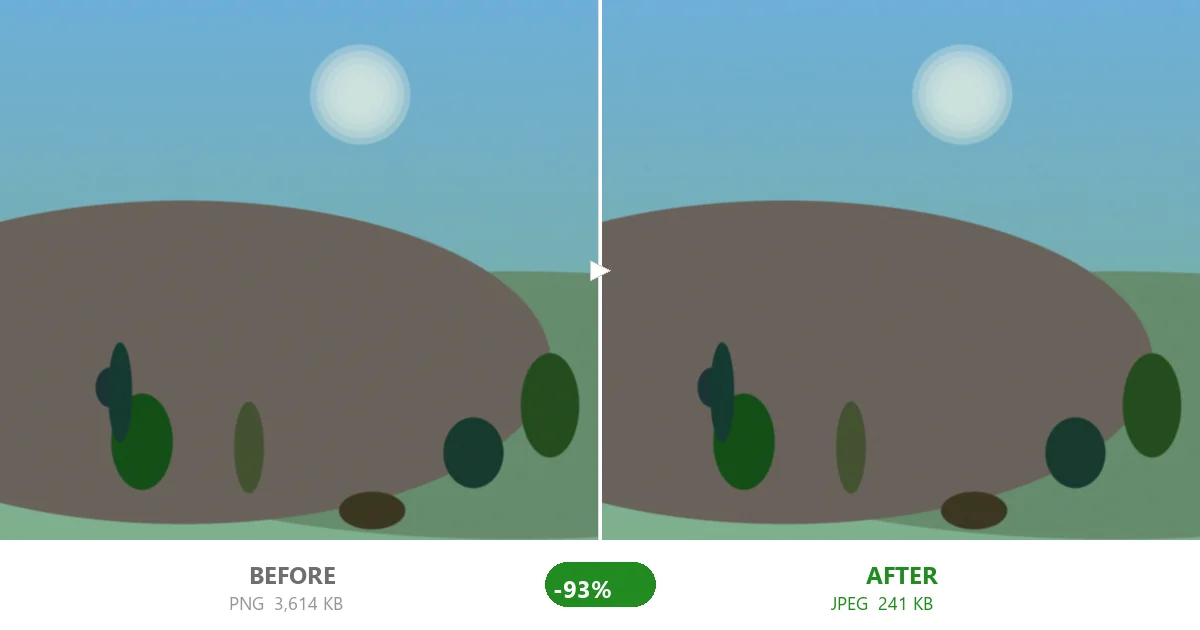
| photo 06 | 3,614 KB | 241 KB | 89 KB |
| photo 11 | 3,616 KB | 244 KB | 94 KB |
Every photo behaved almost identically because they're all the same kind of image — real scenes with smooth gradients. Here's the batch total:
| Method | 12-photo total | vs. 25 MB limit |
|---|---|---|
| Raw | 42.3 MB | 1.7× over — blocked |
| Zipped | 40.8 MB | 1.6× over — blocked |
| MozJPEG q75 | 2.8 MB | Fits with room to spare |
| MozJPEG q60 | 1.0 MB | Barely a rounding error |
That's a 93% reduction at q75 and 98% at q60. And the photos still look like the photos. At normal screen size you will not notice the difference between the original and the q75 version. I've stared at them side by side and the only place you can tell is if you zoom way in on something with fine texture.
A simple workflow that always gets under the limit
You don't need fancy software. Here's the routine I use now, and it hasn't failed me yet:
- Round up the photos you want to send. If it's more than about fifteen, split them across two emails anyway — easier for the recipient to open.
- Re-compress them to JPEG quality 75. This is the sweet spot: small enough to clear any provider's limit, large enough that nobody complains about quality. Need to squeeze a stubborn batch into a tight 20 MB Outlook cap? Drop to 60.
- Check the total before sending. A dozen q75 photos lands around 2–3 MB. Even a hundred of them stays under most limits.
- Send. No Drive links, no "please download from here," no bounce-backs.
If you regularly ship lots of images — say you're a real estate agent emailing listing photos or you run a shop — batch-compressing first saves everyone the headache. The whole point is to send the picture, not a puzzle.
When you're fighting a strict cap (like 20 KB)
Some systems are far tighter than email. Job portals, visa forms, and government upload boxes often cap a single file at 20 KB. That's a different beast — you're not emailing, you're satisfying a hard validation rule. For those, you need aggressive settings and sometimes a resolution drop, not just a quality tweak. Our 20 KB compression guide walks through exactly how to hit that number without the upload form rejecting you.
But for everyday "my photos are too big to email" — quality 75 JPEG re-compression is the entire answer. It's free, it's instant, and unlike zipping, it actually moves the number.
The easiest way to do this
You can re-compress a folder of photos in a couple of minutes with any decent tool, but most desktop apps are slow, ask you to install something, or quietly upload your pictures to a server. The approach I trust: a browser-based compressor that runs the encoding on your own machine. Drop the photos in, pick quality 75, download, done — and because it all happens locally, the images never leave your device. That matters when you're emailing personal photos to family or client work to a customer.
The next time Gmail tells you your attachments are too big, don't reach for the zip button. Re-compress the JPEGs instead. Your future self — and your recipient's inbox — will thank you.