
You just spent twenty minutes staging a product photo. Natural light from a window. A clean surface. The item centered, sharp, looking exactly like something people would click Buy on. You transfer it to your computer and check the file size: 1.1 MB. One photo. Now multiply that by ten images per listing, then by however many products you have listed. Your shop page is pulling down megabytes of image weight on every visit, most of it on mobile connections where every extra hundred kilobytes costs you a second of load time.
Here is what almost everyone does wrong: they open the photo in an editor, drag the dimensions down to 800×600 or smaller, and save. The file shrinks, yes. But you also threw away the pixels that make the hover-zoom feature work. On platforms like Etsy, Mercari, Vinted, or Amazon, buyers expect to tap or hover and see fine detail. Resizing kills that. The right move is to keep every pixel and shrink the file another way — by lowering the JPEG quality setting instead.
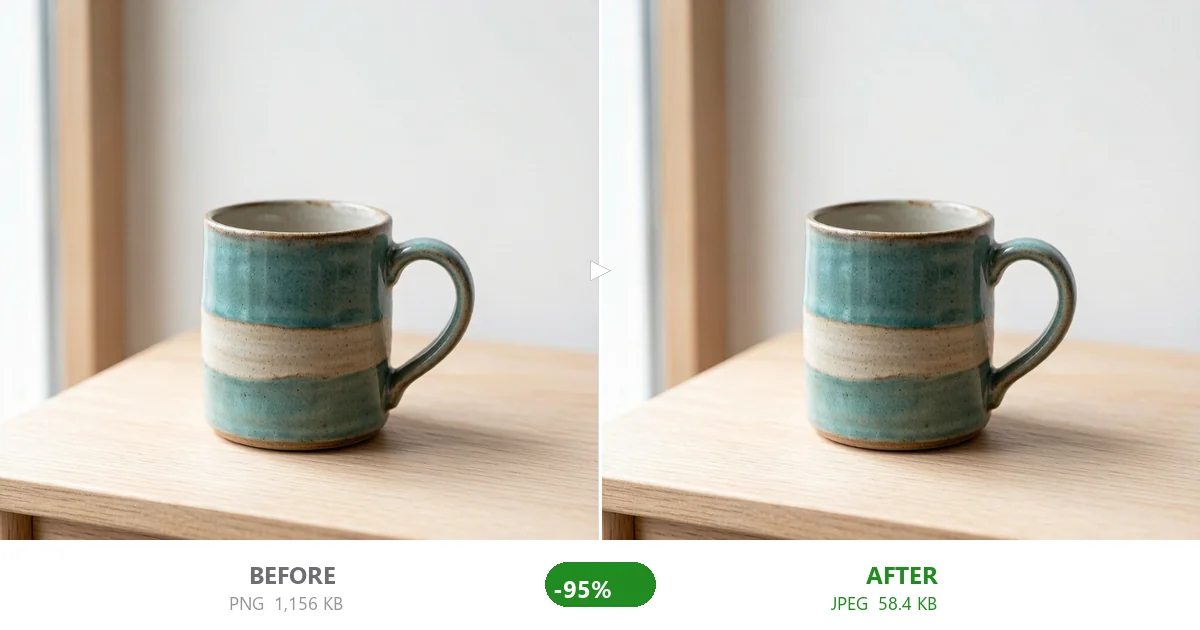
I tested this properly. I took a single real product photo — a handmade ceramic mug, 1024×949 pixels, exported straight out of camera as a PNG weighing 1,156 KB — and ran it through a browser-based JPEG compressor at nine different quality levels. Same photo, same resolution, only the encoder aggressiveness changed. Here is what came out:
| JPEG quality | File size (same 1024×949 photo) | What changed |
|---|---|---|
| 95 (near-lossless) | 179 KB | Indistinguishable from original |
| 90 | 110 KB | Still perfect at normal viewing size |
| 85 | 82 KB | Barely any difference visible |
| 80 (most tools' default) | 67 KB | Slight softening at 200% zoom |
| 75 | 58 KB | The sweet spot — sharp enough, tiny file |
| 70 | 53 KB | Noticeable if you squint at 300% |
| 65 | 49 KB | Fine areas get slightly muddy |
| 60 | 45 KB | Acceptable for thumbnails only |
| 50 | 40 KB | Too far — artifacts start showing |
What selling platforms actually want from your images
Rules vary by platform, but the pattern is the same everywhere: they want big, detailed images that load fast. Here is how the major ones line up:
- Etsy: Recommends images at least 2000 pixels on the shortest side so the zoom feature works crisply. Accepts JPEG, PNG, GIF up to around 10 MB each. No mandatory background color. Up to 10 photos per listing.
- Mercari (US/Japan): Max 5 MB per photo, JPEG/PNG/GIF. Recommends at least 1080 px on longest side.
- Vinted / Depop: Up to 8 MB per image, JPEG/PNG. Square or near-square aspect ratios perform best in feed layouts.
- MercadoLibre / Mercado Livre: Up to 5 MB per photo. Strongly recommends JPEG for product shots. Mobile-first marketplace — image speed matters enormously here because most buyers browse on phones.
- eBay Kleinanzeigen (DE) / Avito (RU): More lenient on file sizes (up to 15–20 MB), but listings with lighter images rank higher in search results and get more views.
Notice the pattern? None of them tell you to resize small. They all reward high-resolution images with working zoom. The problem is never too many pixels. It is too much invisible data packed into those pixels.
Quality vs. resize: why the slider wins
A JPEG file holds two things: pixel data (what the picture shows) and encoding detail (how precisely each pixel's color is stored). When you resize, you throw away pixels permanently. When you lower quality, you keep every pixel and simply store each color with fewer bits of precision. For a product photograph viewed at normal listing sizes — maybe 600–800 pixels wide on a phone — the difference between quality 95 and quality 75 is essentially invisible. But the file size difference is enormous: 179 KB versus 58 KB. That is a 68% reduction with no pixel loss whatsoever.
PNG makes this worse. If you save a product photo as PNG, the encoder stores every pixel perfectly, which means a 1024-pixel-wide product shot can easily hit 1–3 MB even though it contains no more visual information than a 60 KB JPEG. JPEG is what every platform recommends for photographs, and it compresses dramatically better than PNG for anything with gradients, textures, or natural lighting — which is basically every product photo ever taken.
What happens when you upload ten uncompressed photos
Selling platforms let you upload multiple images per listing. Etsy allows ten. Here is what the math looks like when every photo starts as a 1.1 MB PNG:
| Per-photo approach | One photo | All 10 photos |
|---|---|---|
| Original PNG (no compression) | 1,156 KB (1.1 MB) | 11.3 MB |
| JPEG quality 95 | 179 KB | 1.8 MB |
| JPEG quality 80 (default) | 67 KB | 668 KB |
| JPEG quality 75 (sweet spot) | 58 KB | 574 KB |
Going from 11.3 MB to 574 KB across a single listing is the difference between a page that loads in under a second on 4G and one that spins for four seconds. On mobile networks, that gap determines whether someone waits or taps back. Lighter images also help your Core Web Vitals score, which some platforms factor into search ranking within their marketplaces. If you run a Shopify store alongside your marketplace presence, the Shopify image optimization guide covers the technical side of that in depth.
The workflow I use before uploading anywhere
- Export at full resolution. Keep your photo at its native size — 2000 px or wider is ideal. Do not downscale to "save space."
- Drop the photo(s) into a browser-based compressor. Upload all ten at once if the tool supports batch. The one I use handles up to 20 files simultaneously and runs entirely in your browser — nothing uploads to a server.
- Check the default result. Most compressors start at quality 80, which already drops a 1.1 MB photo to 67 KB. That might be all you need.
- If you want it smaller, drag the quality slider to 75. Watch the size readout fall. At 75 you get 58 KB with zero dimension change. Every pixel stays in place.
- Preview before downloading. Good tools show a side-by-side before/after. If the compressed version looks clean at 100% magnification, download it. If it looks off, nudge quality back up to 80 or 85.
- Upload to your selling platform. Ten sharp, fast-loading JPEGs. Zoom works. Mobile loads fast. Done.
Does quality 75 actually look worse?
Honestly? At 100% zoom on a desktop monitor, yes — very slightly. The finest textures (ceramic glaze speckle, fabric weave, metal grain) lose a hair of crispness. At 200% zoom you can tell the compressed version apart from the original if you flip back and forth quickly.
But here is the thing: nobody views your product photo at 200% zoom. Etsy displays the main image at roughly 500–700 pixels wide in search results and about 800–1000 on the listing page. Zoom maxes out at the uploaded resolution, which is still your full 1024+ pixels — and at that size on a typical phone screen, quality 75 looks identical to the original. You are trading away invisible micro-detail for a file that is 95% smaller. That is a trade worth making every time.
If you sell something where extreme texture fidelity matters — hand-knit sweaters where stitch definition is the selling point, or jewelry where facet sparkle drives clicks — stick to quality 80 or 85. You will still cut the file by 80–90% compared to the original PNG. For everything else — ceramics, prints, home goods, accessories — 75 is your number.
Mistakes that cost sellers time and sales
- Resizing to under 1000 pixels "to save space." This is the number-one error I see. Yes, the file gets smaller. But you also disabled zoom, made the image look soft on Retina screens, and gave yourself less room to crop or reframe later. Keep the resolution. Lower the quality instead.
- Saving product photos as PNG. PNG is lossless, which sounds good until you realize your 1 MB product photo becomes a 3 MB PNG and takes three times longer to load. Save as JPEG. Always JPEG for photographs.
- Re-saving the same JPEG repeatedly. Every "Save As" re-compresses the file. After two or three rounds, artifacts stack up and the photo starts looking blurry while the file size barely budges. Compress once, directly from the original source file (your RAW export or camera JPEG).
- Using server-side online compressors. Your product photo travels to a stranger's server, gets processed there, and comes back. For unreleased designs or pre-launch products, that is an IP leak risk. Browser-side compressors run entirely on your device — the file never leaves your computer. Given how many sellers work with unreleased inventory or proprietary designs, this matters more than most people realize.
- Ignores the quality sweet spot between 70 and 80. The savings curve is steepest at the top. Going from 95→75 cuts the file by 68%. Going from 60→50 only saves 11%. All the easy gains happen between 85 and 70. That is where you should be spending your attention.
Related guides for specific situations
Your product photo needs might be more specific than the general case above. If you are hitting a particular size limit or dealing with a specialized platform, these guides dig deeper:
- Selling on Amazon specifically (they have stricter 1 MB targets and mandatory white backgrounds)? Read the Amazon product image compression guide.
- Need to squeeze a photo under 50 KB for a strict form or avatar upload limit? The under-50-KB walkthrough covers exactly that scenario.
- Wondering whether quality 60 is really that different from quality 80? The JPEG quality deep-dive compares them side by side with four different image types.
- Running a Shopify store alongside your marketplace listings? Image speed directly affects your Core Web Vitals and Google ranking. See the Shopify image guide for store-specific advice.
- Taking screenshots of your analytics or design mockups to include in listings? Screenshots turn to mush when saved as JPG. The screenshot compression guide keeps text razor-sharp.
The bottom line
Stop resizing your product photos. Keep them at full resolution — 2000 pixels on the shortest side minimum — and compress them as JPEG at quality 75 (or 80 if you are nervous about texture-heavy items). A 1.1 MB photo becomes 58 KB. Ten photos become 574 KB total instead of 11 MB. Your listing pages load faster on mobile, your zoom still works, and you did it without installing software, creating an account, or sending your photos to anyone else's server.
Next time you are about to drag that resolution slider left, stop. Drag the quality slider instead. Same result, none of the damage.