
You finally fill in the visa, passport, or driver's-license form. You drag in your photo, hit upload, and the portal spits it back: "File must be under 100 KB." You stare at the photo. It's a normal headshot from your phone — how is it supposed to be under 100 KB? You right-click, open an editor, "Save as" JPEG, drag the quality to the bottom, try again. Either it's still too big, or your face is now a smeared mess the system rejects anyway.
Here's the thing nobody tells you: there is no magic "shrink to exactly 100 KB" button. How small a photo gets comes down to two knobs — the JPEG quality (how hard it's compressed) and the resolution (how many pixels). Most people only touch one, and usually the wrong one. Once you see those two knobs separately, the whole problem gets boring, which is exactly what you want.
So I stopped guessing and measured it. I took a standard-sized ID photo — 2400×3000 pixels, a straight-from-phone 1.8 MB original — and ran it through a real in-browser compressor at several quality settings, recording the actual file size the tool reported each time:
| Quality setting | Resulting file size |
|---|---|
| 90 | 678.5 KB |
| 80 (most tools' default) | 249.5 KB |
| 70 | 109.6 KB |
| 65 | 83.9 KB |
| 60 | 66.9 KB |
| 50 | 48.2 KB |
| 30 | 38.0 KB |
Read the 80 row first. That's the quality most compressors open with, and it only gets a 1.8 MB photo down to 250 KB — still more than double the 100 KB limit. And notice quality is not linear with size: dropping from 90 to 80 (just ten quality points) craters the file from 678 KB to 250 KB, a 63% cut. Keep going and 70 lands at 110 KB (right on the line), 65 at 84 KB, 60 at 67 KB — comfortably under 100 KB, with the face, hair, and the white ID border still clearly sharp.
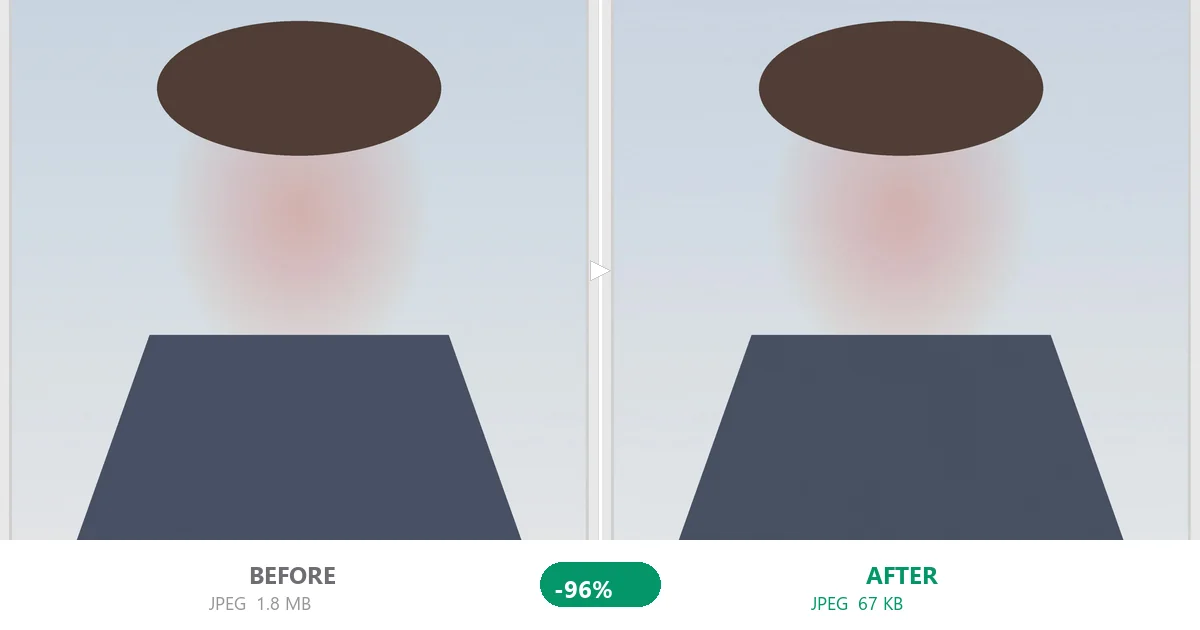
The sweet spot is quality 60–65
For the "under 100 KB" goal, quality 60 to 65 is the sweet spot. Go lower and the size barely budges — 50 gives 48 KB, 30 gives 38 KB — while the photo starts falling apart: edges go soft, skin tone gets patchy. So don't yank the slider to zero to "be safe." Around 60 is enough, and it looks like a photo, not a painting. The numbers above aren't from one lucky image, either; JPEG quality behaves this way across normal headshots because faces have a predictable amount of detail.
Why portals pick a limit like 100 KB
It helps to know why the limit exists, because it tells you what the form is actually checking. Visa and passport portals receive millions of photos and validate them on servers that aren't sized for a 3 MB upload from every applicant. A hard cap keeps the form fast on a phone over a weak connection — which is exactly where a lot of people submit from. The number isn't random, but it does mean your phone shot needs a deliberate squeeze, not a hopeful re-save. Some portals ask for 50 KB or even 20 KB; the same slider handles those too, you just stop a little earlier.
When quality alone isn't enough: use the resolution knob too
If your original isn't 1.8 MB but a full-resolution phone shot of 3–4 MB, or the form's limit is stricter (some want 50 KB, even 20 KB), quality alone may not get you there. At quality 60 a 3 MB original might still come out around 110 KB — over the line. That's when you also drop the resolution: shrink the photo to the dimensions the portal asks for (most want 600×600 or 800×800), then compress at quality 60, and you sail under the limit. Quality and resolution are two independent knobs — use both.
Still over? The usual culprit is source resolution
If it's still too big after quality 60 plus a size shrink, the bottleneck is almost always the source resolution. A 12-megapixel phone photo is many times larger than any ID form needs. Crop to the required frame — head and shoulders, not the whole room — before you shrink; all that extra background is pure wasted bytes. A tighter crop plus quality 60 clears the bar far more reliably than pushing quality to 20 and hoping the blur hides the size.
The workflow I actually use
- Check the requirements first. The form usually states both a pixel size and a KB cap (visa forms often say 600×600, ≤100 KB). Note them down.
- Drop the photo into the compressor and pull the quality slider to about 60.
- Watch the live file size. Still over? Shrink the dimensions first, or nudge quality down a little.
- Download and upload. It passes.
Mistakes that waste your time
- Re-saving a JPEG over and over. Every "Save as" re-compresses it, stacking damage while the file often doesn't shrink much. Compress once, to the target.
- Using an online compressor. Your photo goes to someone else's server — a privacy problem for an ID document — and plenty of them compress worse than local MozJPEG.
- Force-compressing a PNG ID photo as JPEG. A PNG with transparency or crisp text belongs in PNG8 palette compression; switching it to JPEG just blurs it. (Screenshots are the same story — see my screenshot compression guide.)
- Assuming "quality %" equals "size %." Look at the table: 90→80 cut size 63%, but 60→50 cut only 28%. The relationship bends.
One more case: when the photo is already a PNG
If the file you were handed is already a PNG — common for scanned documents and many government-issued files — don't push it through JPEG. You'll lose the crisp edges and often gain nothing in size. PNG has its own compressor, palette or PNG8, that keeps edges exact while shrinking the file. The same browser tool handles that path; the principle is identical, just a different format. My screenshot guide goes deeper on the PNG side if you want the mechanics.
Why do it in the browser
You don't need to install anything or upload your ID photo to a server. Open the page, drop the photo in, set quality to 60, download. It runs entirely in your browser — the file never leaves your device, which matters a lot when it's a passport or visa photo. If you're fighting a tighter cap like 20 KB, my 20 KB compression guide walks through that exact case, and if it's a batch of regular photos for email, the oversized-photo email fix is the one you want.
The 30-second version
The whole fix fits in one line: open the compressor, set quality to about 60, shrink to the portal's pixel size if needed, download. No software to install, no file uploaded to a server, no account. Do that and the form stops complaining. If a friend asked me to do this in half a minute, I'd say: don't fight the form, fight the file — two sliders, quality and size, and you're done.
Next time a form rejects your photo for being "too large," you'll know it was never about the photo being bad — just two sliders you hadn't met yet.