
You found the perfect job listing. Tailored your resume, wrote a cover letter that doesn't sound generic, and filled out every field in the online portal. You hit submit — and the form rejects your photo upload. "File size exceeds 50KB." You're stuck.
This happens constantly. Government job portals, university recruitment systems, corporate application platforms — they all set file size limits for photos and scanned documents. Usually 20KB to 100KB. If you've been stuck at this step, you know the frustration of having your entire application derailed by a file size error.
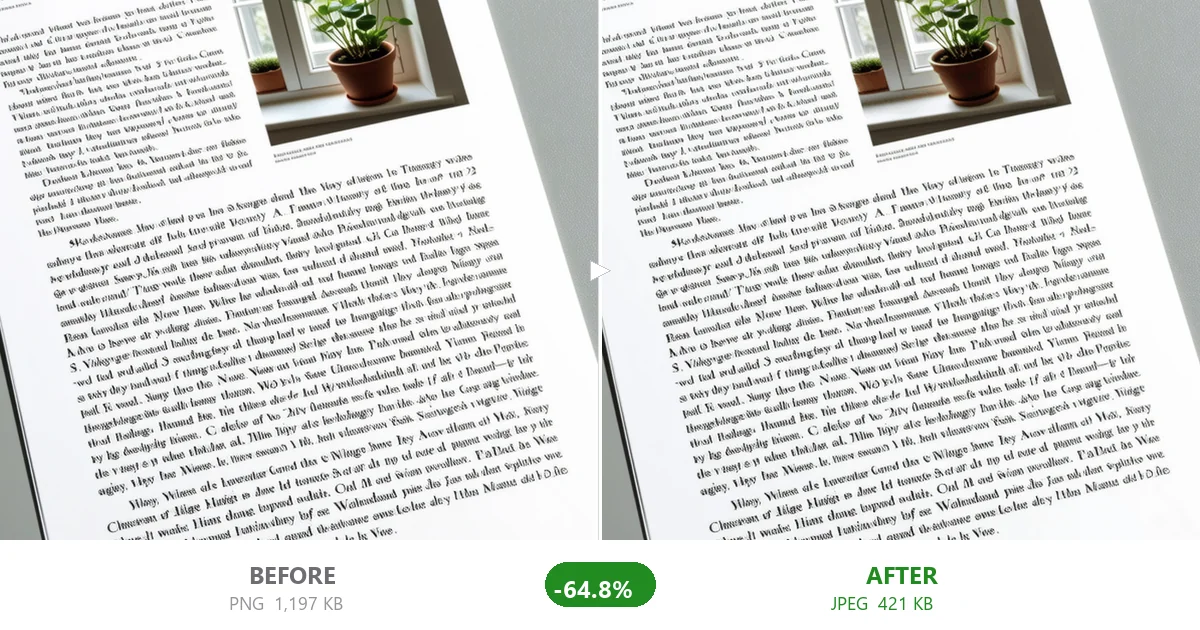
After looking at requirements across dozens of job portals, here are the most common limits:
- 20KB to 50KB: Passport-style photo (most common for government and public sector jobs)
- 50KB to 100KB: Resume photo on standard corporate portals
- 100KB to 200KB: Scanned documents (degree certificates, experience letters, ID proofs)
- Under 1MB: More lenient systems (LinkedIn profile photo, Indeed, etc.)
The 20-50KB range is the killer. A typical smartphone selfie is 2-4MB. You need to reduce it by 98-99%. Without the right technique, that photo is going to look like a Minecraft character.
Here's the exact workflow. I've tested it across multiple images. It works.
Most job portals want a square or near-square photo showing your face and shoulders. Standard passport photo dimensions are 35mm x 45mm, which translates to roughly 413 x 531 pixels for digital uploads. But if the system only asks for a "recent photograph," a square crop around your face works fine.
Crop tightly. Extra background = extra pixels = extra kilobytes. You want your face filling 60-70% of the frame.
For a 50KB target, aim for 300x300 to 350x350 pixels. This is enough for a clear face photo on screen. You don't need 1000px — nobody is printing this at poster size.
Open CompactJPG, drop your cropped photo, and set JPEG quality to 55. Compress and check the output size. If it's still above 50KB:
- Drop quality to 45 and retry
- If that still doesn't hit it, reduce dimensions by 10-15%
- If the output is well below (under 25KB), bump quality up to recover sharpness
This is the step everyone skips. Open the compressed photo and view it at roughly passport-print size (about 2 inches wide on screen). If your face is clear and there's no visible pixelation, you're good. The compressed version will look identical to the original at the target display size, even though the file is 40x smaller.
Scanned documents are a different beast. They tend to be PNG or PDF, both of which are terrible for compression.
If the portal accepts JPEG (most do for document uploads):
- Scan your document at 150-200 DPI. 300 DPI is overkill and creates enormous files. Nobody needs to read the watermark on a degree certificate that precisely.
- Save or convert to JPEG. Do not upload as PNG — a scanned certificate as PNG will be 5-10x larger.
- Compress to JPEG quality 65-75. CompactJPG handles this well. At quality 65, a scanned document at 150 DPI will be around 80-150KB — well within most 200KB limits — and perfectly readable.
If the portal requires PDF only:
Most scanner software creates bloated PDFs. Use the "Optimize PDF" or "Reduce File Size" option in your scanner app, or compress the individual pages as JPEGs first, then combine into a PDF. The visual quality difference is negligible for screening purposes.
Some platforms have quirks worth knowing:
- SSC / UPSC / Government portals (India): Photo under 20-50KB, signature under 10-20KB, both typically JPEG only. Resize signature to ~140x60 pixels, JPEG quality 40-50.
- Workday / Taleo / SAP SuccessFactors (Corporate): Usually accept up to 5MB per file. No compression drama here, but smaller files upload faster.
- LinkedIn Easy Apply: Auto-resizes, but starting with a compressed file avoids processing delays.
- University admission portals: Often strict. Read requirements carefully — some specify exact pixel dimensions AND file size.
I see people make these mistakes constantly:
- Taking a photo of a photo with their phone: Just don't. The moire pattern, glare, and distortion make compression artifacts 10x more visible.
- Compressing, checking, compressing again: JPEG is lossy. Every re-compression adds artifacts. Always compress from the original file.
- Using online "photo resizer" apps that upload your photo to a server: Your passport photo, degree certificate, and signature are sensitive documents. Use a browser-based tool like CompactJPG that processes everything locally. Your files never leave your device.
Getting stuck on a file size limit when the application deadline is hours away is stressful. Now you have the exact workflow to get through it. Good luck with the application.