
We have all been there. You pick a few photos from your last trip, attach them to an email, and hit send — only to see a message saying the attachment size exceeds the limit. Frustrating, right?
Every major email provider has attachment limits, and modern smartphone photos are much larger than those limits allow. The fix is simple: compress your images before attaching them.
Email Attachment Limits (2026)
Here is what each provider allows:
- Gmail: 25 MB per email (total of all attachments)
- Outlook: 20 MB per email (34 MB for Outlook.com with cloud attachments)
- Yahoo Mail: 25 MB per email
- Apple Mail (iCloud): 20 MB per email
- Proton Mail: 25 MB per email
A single photo from an iPhone 14 or Samsung Galaxy can be 3–8 MB. Three or four photos and you have already hit the limit.
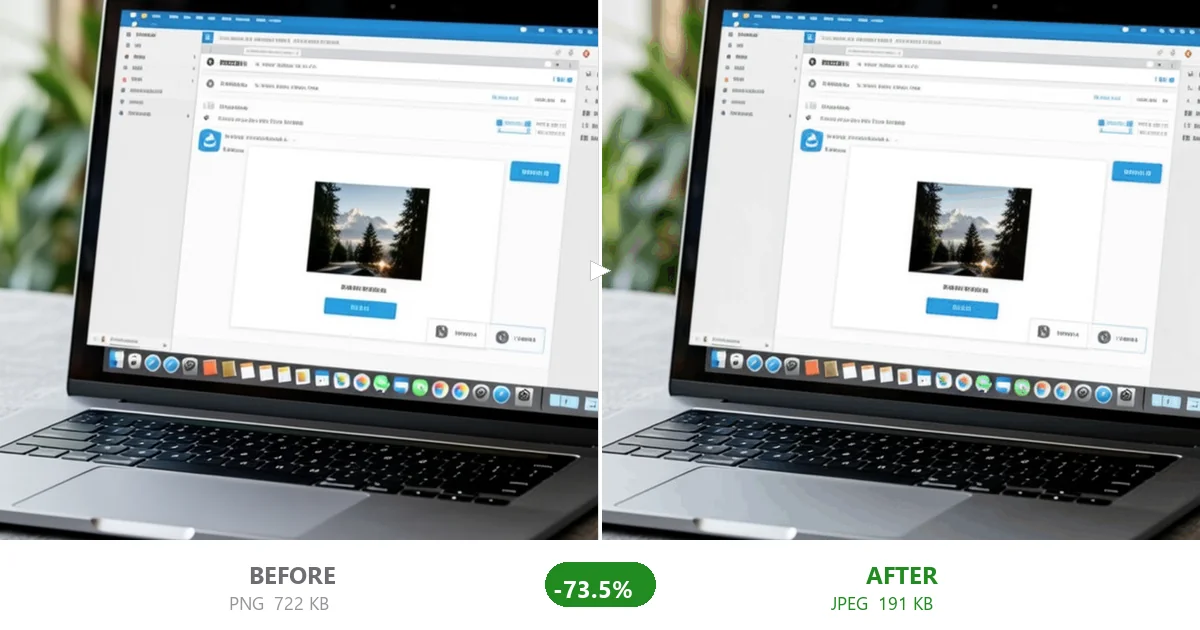
How Much Do You Need to Compress?
The good news: you don't need to crush your photos into tiny files. Here is a practical target:
- For email attachments: aim for 1–3 MB per photo. You can fit 8–10 photos in a single Gmail message.
- For faster sending: smaller files upload faster, especially on mobile networks.
- For recipient convenience: many people check email on mobile with limited data. Smaller attachments are nicer to receive.
Method 1: Compress Images Online (Fastest, No Software)
The easiest way is to use a browser-based compressor like CompactJPG:
- Go to compactjpg.com
- Drag your photos into the browser window (or click to select)
- Click COMPRESS. The default quality (80) works well for email.
- Download the compressed photos and attach them to your email.
Because everything happens in your browser, your photos never leave your device. No uploads, no privacy risk.
Method 2: Compress Multiple Photos at Once
Need to send 20 photos from a recent trip? Do not attach them one by one. Compress them all at once:
- Select all the photos you want to send
- Drop them all into CompactJPG (supports batch compression)
- Click COMPRESS ALL
- Click SAVE ALL — they download as a ZIP file
- Attach the ZIP to your email
This is often better than attaching photos individually — the recipient gets one file to download, and ZIP compression adds an extra layer of size reduction.
Method 3: Resize Images (When Compression Is Not Enough)
If your photos are from a DSLR or mirrorless camera, they may be 20–40 MB each. Even compressed, they might be too large for email.
In that case, you need to resize the image dimensions:
- For email viewing, 1920 pixels on the long edge is more than enough. Most email clients display images at 600–800 pixels wide.
- For photo sharing, 2048 pixels on the long edge preserves plenty of detail while keeping file sizes manageable.
After resizing, compress the images using the method above. A 24 MP photo resized to 1920px and compressed at quality 80 will typically be 200–500 KB — small enough to send anywhere.
Format Matters: JPEG vs PNG for Email
- JPEG: Best for photos. Small file size, universal support. Always use JPEG for photos in email.
- PNG: Best for screenshots, logos, graphics with text. Larger file size, but perfect quality.
- WebP: Better compression than JPEG, but not all email clients display WebP inline. Use JPEG for maximum compatibility.
Quick Reference: Target File Sizes for Email
| Use Case | Target Size | Quality Setting |
|---|---|---|
| Single photo in email | 1–3 MB | 80–90 |
| Multiple photos (5–10) | 500 KB–2 MB each | 70–85 |
| Screenshots for email | 100–500 KB | PNG8 conversion |
| Photos for slow connections | 200–800 KB | 60–75 |
Common Mistakes
1. Compressing Too Much
Setting quality to 30 or 40 makes files very small, but the compression artifacts will be obvious. For email, you almost never need to go below 60.
2. Using PNG for Photos
PNG is lossless — it keeps every pixel perfect. For photos, this means files that are 5–10× larger than a quality-80 JPEG with no visible improvement.
3. Forgetting About Mobile
Remember that your recipient might be checking email on a phone with a slow connection. A 5 MB photo takes 10–20 seconds to load on 3G. Keeping photos under 1 MB is a kind gesture.
The Privacy Bonus
Most online compressors upload your photos to a server, compress them there, and send the result back. That means your photos live on someone else's server — even if just for a few hours.
CompactJPG works entirely in your browser. Your photos never leave your device. For personal or sensitive photos, this matters.
Summary
Email attachment limits are annoying, but the fix is simple. Compress your photos before attaching them, aim for 1–3 MB per photo, and use quality 70–85 for the best balance. Your recipients will thank you for faster-loading emails.