
WebP adoption has exploded. Chrome has supported it for years, Safari finally got onboard, and now virtually every modern browser handles WebP natively. If you're building a website in 2026 and not using WebP, you're leaving 25-35% file size savings on the table compared to JPEG — for zero visual quality difference.
But there's a catch. WebP is great as a delivery format, but working with it in bulk is surprisingly painful. Most image tools either don't support it well, or they're CLI-only with steep learning curves. If you have a folder with 200 WebP images and you need to compress them all — or convert a bunch of JPEGs to compressed WebPs — the workflow isn't always obvious.
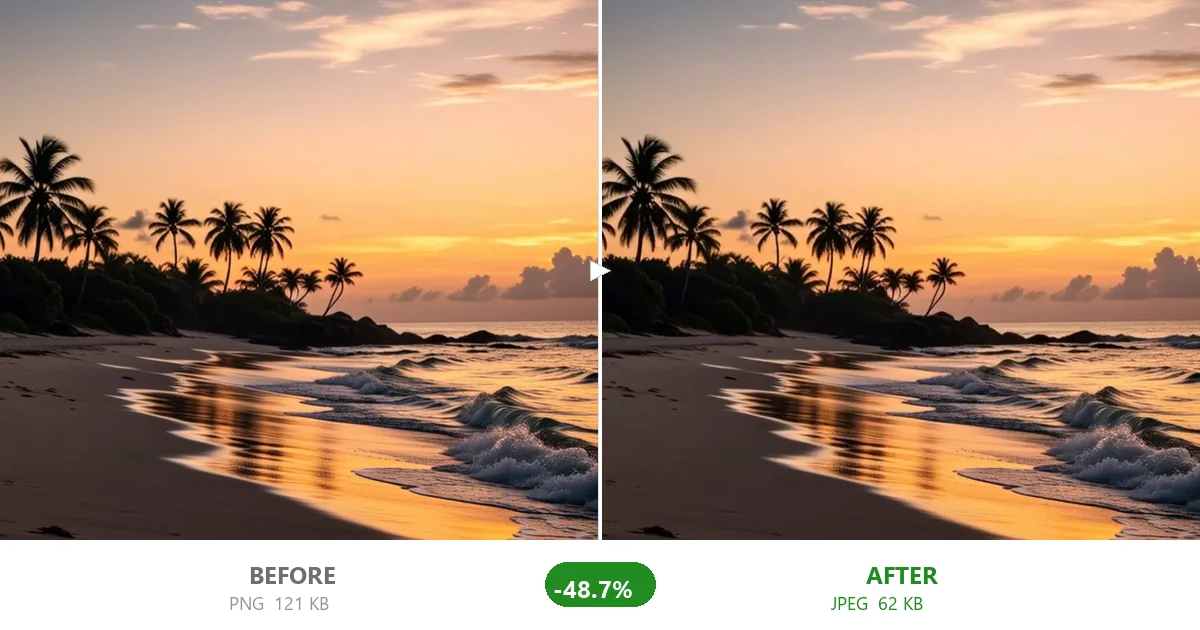
This guide covers the real ways to bulk compress WebP images, ranked from "I need this done in 30 seconds" to "I need this integrated into my build pipeline."
Before I get into how to do it, here's why you should care. I took a set of 50 product photos and tested JPEG vs WebP at equivalent visual quality:
| Format | Total Folder Size | Avg per Image | Visual Quality |
|---|---|---|---|
| Original JPEG (from camera) | 162MB | 3.24MB | Excellent |
| JPEG quality 75 | 42MB | 840KB | Very Good |
| WebP quality 75 | 30MB | 600KB | Very Good |
Same visual quality, 28% smaller with WebP. Across 50 images, that's 12MB saved. Across a full website with hundreds of images, it adds up to real bandwidth savings, faster page loads, and lower CDN bills.
If you have a folder of WebP images and just want them smaller right now, this is the path of least resistance.
- Go to CompactJPG — it handles WebP the same as JPEG. Drop your entire folder (up to 10 images at a time, or as many as you want in repeated batches).
- Select WebP format in the dropdown if you're converting from another format, or leave it on WebP if re-compressing existing WebPs.
- Set quality to 75 for a good balance, or 65 if you're aggressive about file size.
- Hit Compress. All images process in parallel.
- Download individually or grab the entire batch as a ZIP.
This works for up to about 50-100 images at a time before your browser starts feeling it (WebP encoding is CPU-heavy — that's the tradeoff for the compression efficiency). For larger batches, split into chunks of 20-30.
If your source images are JPEGs or PNGs and you want to convert everything to compressed WebP, the workflow is similar but with one extra step:
- Drop your JPEG/PNG images into CompactJPG.
- Select "WebP" as the output format.
- Set quality to 75. For product photos, this is the sweet spot. For screenshot-heavy sites, you can go as low as 55-65 without text becoming unreadable.
- Compress and download.
The conversion adds a small processing overhead but the output files are immediately production-ready. No need to run them through another tool.
If you're comfortable with the terminal and need to process hundreds of images, the CLI route is more efficient:
Using cwebp (Google's reference WebP encoder):
# Convert all JPEGs in a folder to WebP at quality 75
for f in *.jpg; do cwebp -q 75 "$f" -o "${f%.jpg}.webp"; done

# Batch compress existing WebP files
for f in *.webp; do cwebp -q 75 "$f" -o "compressed_$f"; done
This gives you full control but requires installing the WebP tools. On macOS: brew install webp. On Linux: apt install webp. On Windows: download from Google's WebP precompiled utilities page.
WebP's quality scale works differently from JPEG. A WebP at quality 75 looks equivalent to a JPEG at roughly quality 82. Google's own testing shows WebP's sweet spot around quality 70-80, where the compression gains are massive and the quality loss is invisible to the naked eye.
- WebP quality 85-90: Nearly lossless. File size savings over JPEG are modest (10-15%). Use for hero images where every pixel counts.
- WebP quality 70-80: The production sweet spot. 25-35% smaller than equivalent JPEG, visually indistinguishable at normal viewing distances.
- WebP quality 55-65: Aggressive compression. Still looks decent for thumbnails and background images. Compression artifacts become visible at full size on detailed areas.
- WebP quality below 50: Only for extreme cases. Blocking artifacts become obvious.
- Don't recompress WebPs multiple times: WebP compression is lossy. Converting JPEG → WebP → WebP (recompressed) stacks artifacts. Always compress from the original source.
- Check browser support for your audience: As of 2026, WebP has 97%+ global browser support. The holdouts are niche browsers and very old devices. If your analytics show significant traffic from those sources, keep JPEG fallbacks.
- Watch out for memory usage: Encoding WebP is more CPU-intensive than JPEG. Processing 100 large images simultaneously can freeze your browser tab. Batch in groups of 20-30 for smooth operation.
- CMYK JPEGs don't convert well: If your source images are CMYK (common in print workflows), convert to RGB before converting to WebP. CMYK WebP output can look washed out or wrong-colored.
WebP isn't the future anymore — it's the present. All major browsers support it, all major CDNs serve it, and the compression gains are real and measurable. The only excuse for not using it in 2026 is legacy browser requirements or a CMS that doesn't support it (looking at you, older WordPress installs).
For bulk workflows, a browser-based compressor handles 90% of what most people need. Drop your images, pick WebP, compress, done. For the other 10% — massive media libraries, CI pipelines, automated builds — the CLI tools have you covered.